 Iced
IcedA tour of the eleven rooms
AudioCortex 2 is one window with eleven rooms: places to find material, play it, build with it and watch it. Here is what each room is for and what it does, as of 2.5 Beta 12.
AudioCortex 2 is a single window. Inside it are eleven rooms, each one a place for a different part of the work. They follow the order most sessions take: find material, play with it, build something from it, and watch what it does.
Oscilla, the cybernetic assistant, has a pane beside every room. You can do everything yourself, or ask Oscilla to do it for you, step by step, in front of you. Nothing in AudioCortex generates audio: every sound comes from your recordings or from the built-in synthesizers and effects you control. (Why we call it cybernetic assistance.)
This note walks through the rooms in that order. The pictures are from the beta itself.
Library
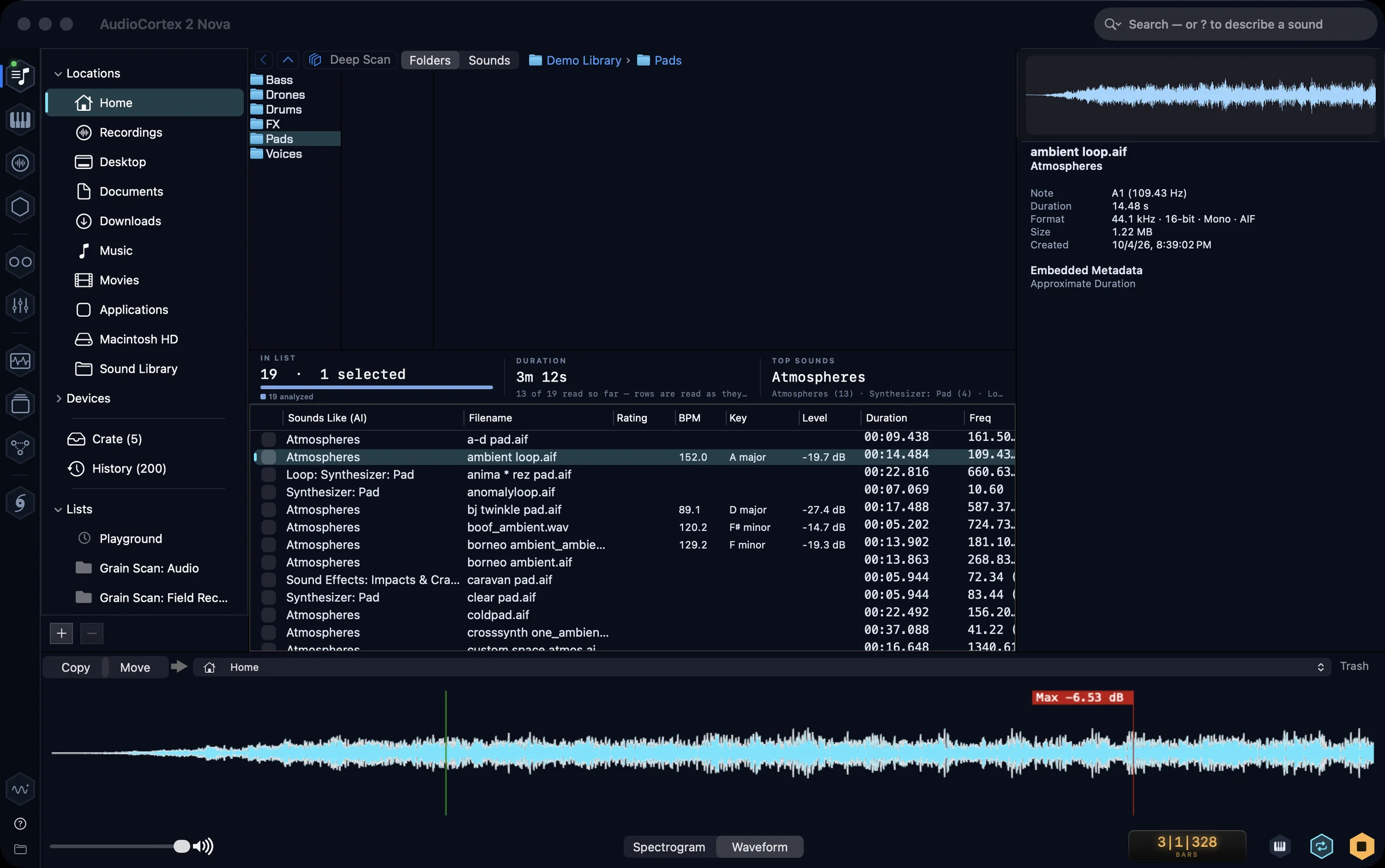
The Library is where AudioCortex starts, and the room AudioFinder users will know best. Point it at your sample folders and it listens to every sound: what it sounds like, its tempo, key and level. Browse, audition, rate and tag hundreds of thousands of files.
What’s different is that it searches by sound. Type ? and describe what you want, for example “something dark and metallic”, and it finds sounds that match, whatever the files are called. Select a sound and ask for more like it. Start a search with * to cover every analysed sound on your Mac, not just the folder you’re in.
The preview strip under the list shows one scope at a time: Waveform, Spectrogram, Chroma, Loudness, Stereo, or Balance against a reference track. Pick one from the pop-up on its bar, and a playhead follows the sound as it plays. You can edit a sound in place without leaving the room.
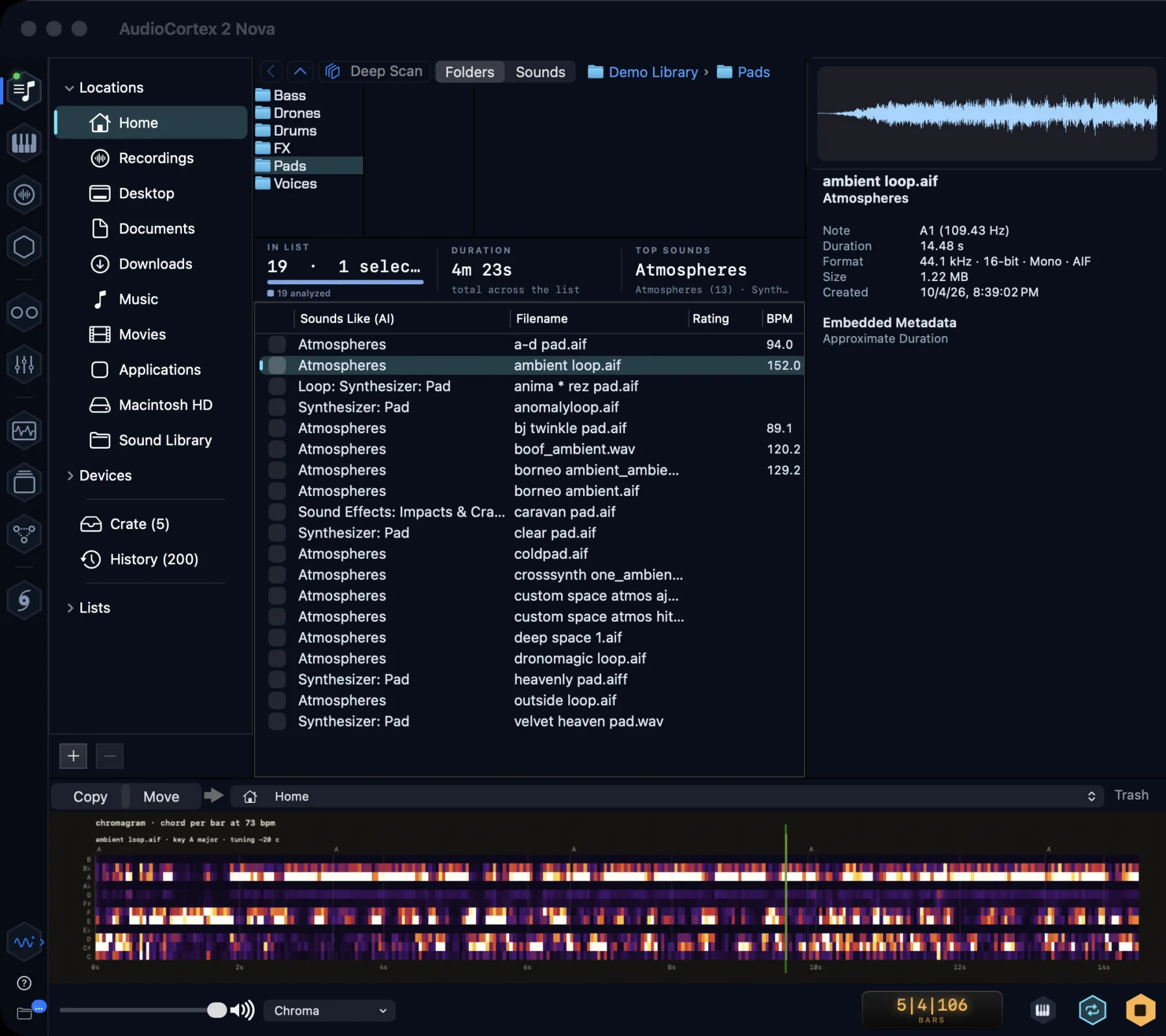
The same pad on the Chroma scope: a chord per bar, and the key.
Oscilla
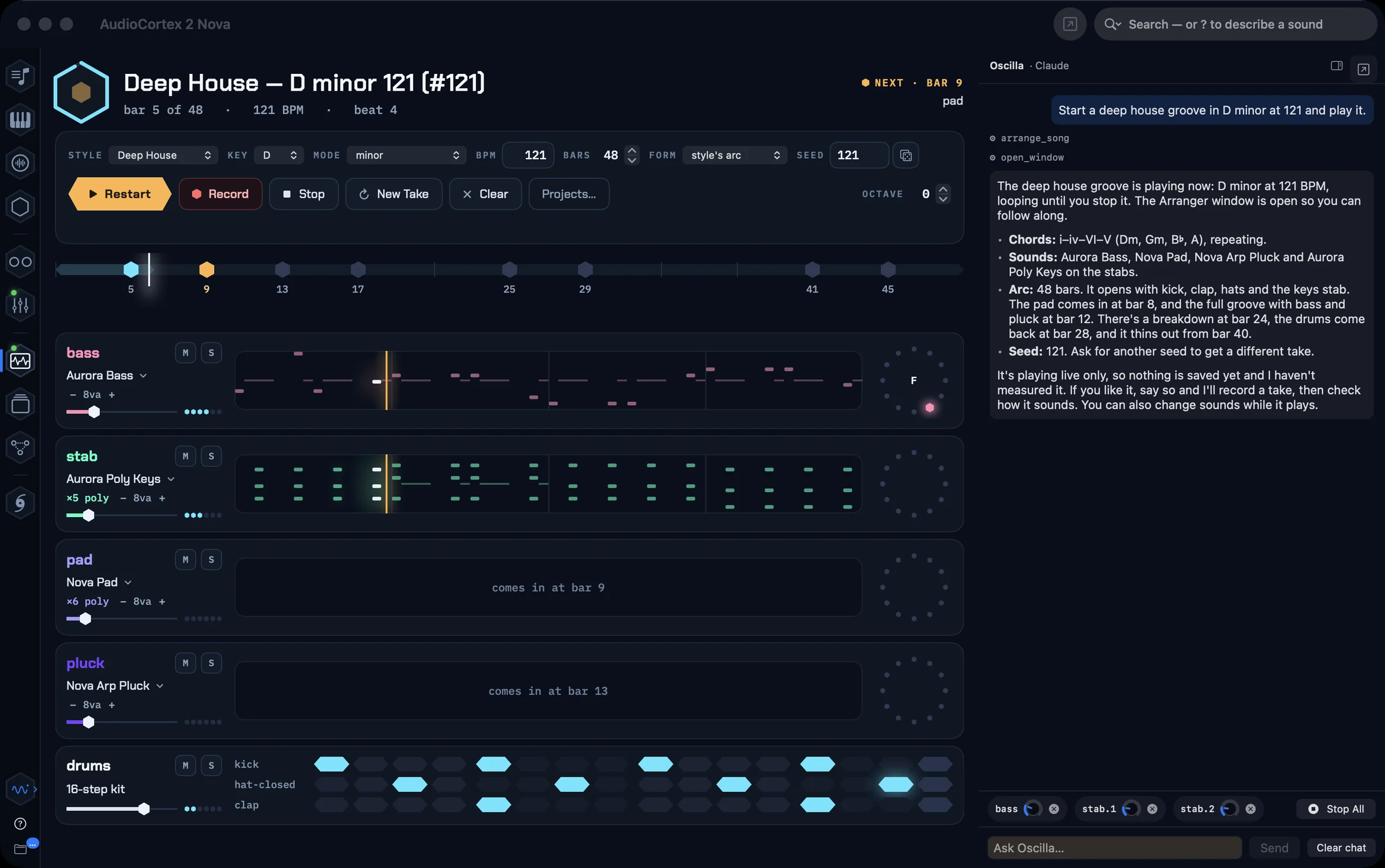
Oscilla isn’t a room so much as a companion to all of them. Ask it to find a lush guitar, stretch it into a cathedral, lay it on a track and bounce it, and it operates the app to do exactly that, tool by tool, where you can see it.
The pane holds more than conversation:
- Knobs you can grab. Ask for “knobs for this pad: brightness, edge, level, swell” and labelled knobs appear, wired to the cards, the synth or the drums. Turn them while the sound plays, flip between A and B, and keep up to eight named snapshots. They’re saved with the project.
- Chords. A honeycomb of chords for the song’s key, with jazz names (maj9, maj7#11, 6/9, m11). Your pads stay put when the key changes, and note names follow the key.
- Song Map, behind the map button in the pane’s header.
You choose what runs Oscilla: Oscilla Local, Iced Audio’s own model, downloaded once and run entirely on your Mac with no key and no account; a Claude, Gemini or OpenAI key you already have (billed by them; we don’t supply keys); your own model server (LM Studio, Ollama and others); or Apple’s on-device model. Everything else in the app works with no assistant at all.
Arranger

Set a style, key, tempo and length, or describe what you’re after, and the Arranger lays out sections, parts and chords and plays them live on the built-in synths, bar by bar, with the drums on their kit.
You stay at the controls while it plays: mute or solo a lane, swap its sound, shift its octave, change the style mid-song. When you like what you hear, record a take and it lands in Tracks as stems, ready to mix.
Instruments
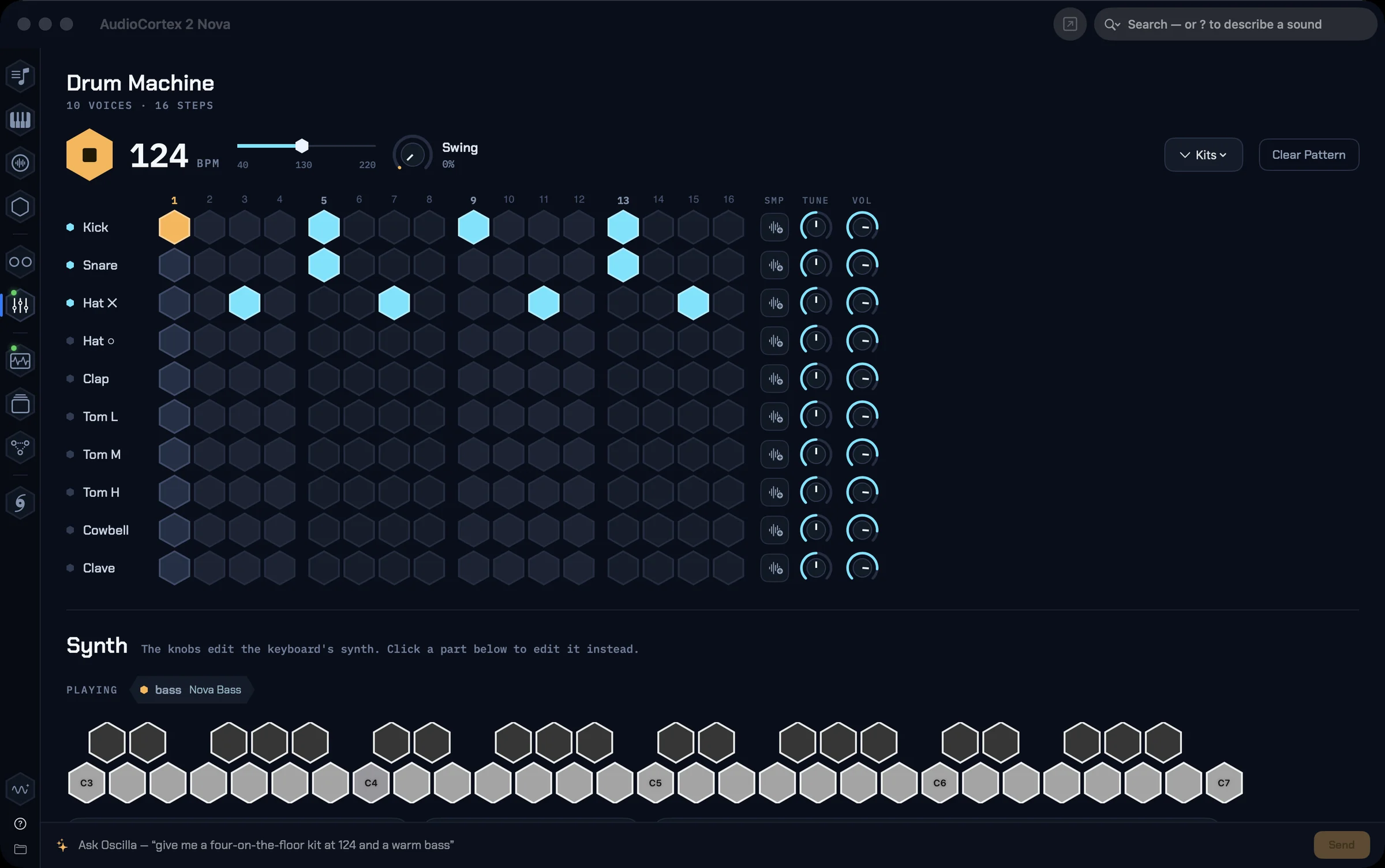
Two instruments are built in, so you never start from an empty library.
The drum machine is a 16-step sequencer with kits made from real drums. Drop your own samples into a kit folder and they become a kit. Its Bounce menu writes 4, 8 or 16 bars of the rhythm straight to a WAV.
The synth has wavetable, analog and FM voices, with oscillators, a filter, an envelope and a hexagonal keyboard. Every sound plays at its own pitch on C4, the way AudioFinder did; a preference puts it on the sound’s own note instead.
DJ

Load any two tracks onto the decks. Tempo and key are read, beatgrids are drawn, and Sync locks one deck to the other. Each deck has a level and a speed fader, there’s a crossfader between them, and cues and crates for what’s next. The waveforms scroll as the music plays, and Oscilla can pull the next track for you.
Tracks
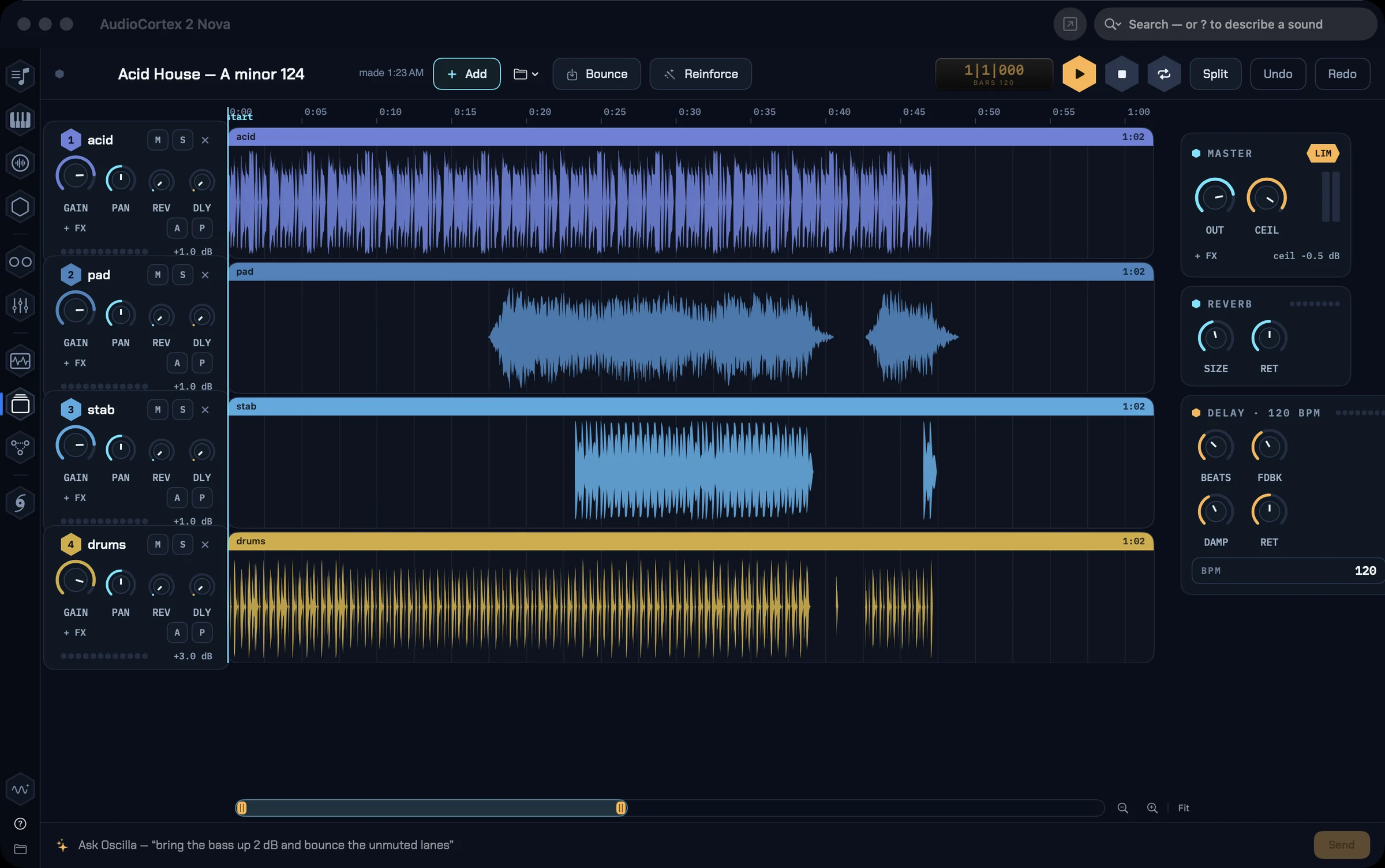
Tracks is where things come together: lanes, a mixer and your plug-ins. Every lane has a channel strip with gain, pan, sends and inserts. Inserts take the built-in effects or any AudioUnit, each in its own window with its own presets. The master has a limiter. A project keeps the whole take, sounds, lanes, stems and mix, in one package.
Since Beta 11 you can record straight onto a track. Arm a lane, or add one, and press Record: the set plays from the cursor while you play along. Recording over part of a lane punches in, and there’s a metronome with a one-bar count-in.
The bar above the lanes is laid out by what you’re doing (since Beta 12): the set and its time on the left, with the title, a tempo you drag or double-click to type, TAP, the metronome and COUNT for a 1, 2 or 4-bar count-in; Play, Stop, Record and Loop in the middle; and + Track, Add, Bounce and a ⋯ menu (Open, Save, Reinforce, Split, Undo, Redo) on the right. A status line under the lanes shows the recording time, the input and its level, the count-in and bounce progress.
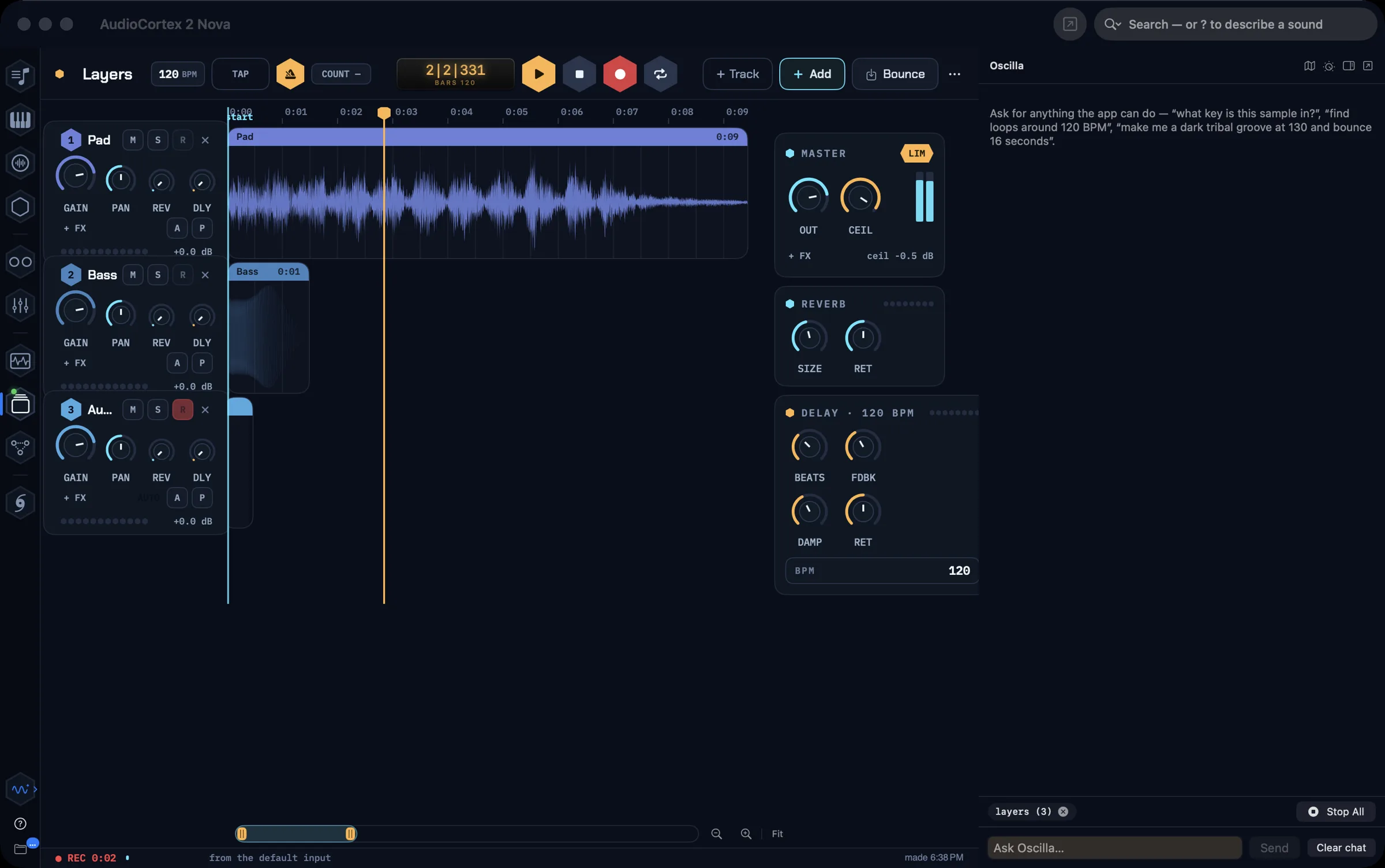
Lane three armed, two seconds into a take, with Oscilla’s pane open beside it.
An armed lane’s strip has monitoring: Off, Auto (hear your input while recording) or In (hear it whenever the lane is armed). Use headphones.
A few more things worth knowing:
- Drag audio onto a lane from the Finder and it lands at the time under the mouse. Drop it anywhere else for a new lane.
- Leave a note for Oscilla. Right-click a lane, write “the pad gets muddy here”, and the note carries the lane and the moment. The pin stays until Oscilla answers.
- Nudge by a single sample. ⌥← and ⌥→ move a clip one sample; add ⇧ to move it one millisecond.
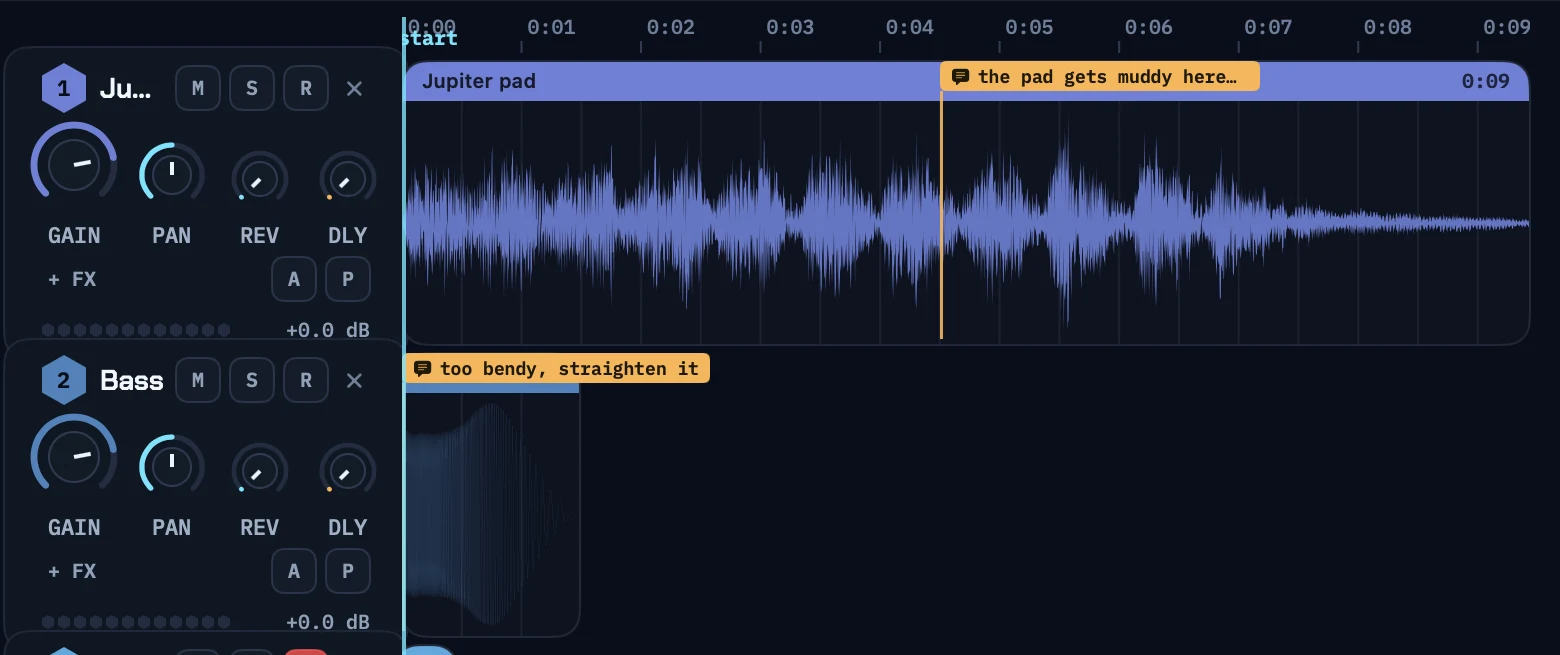
Notes to Oscilla, pinned to the lane and the moment.
Nodes
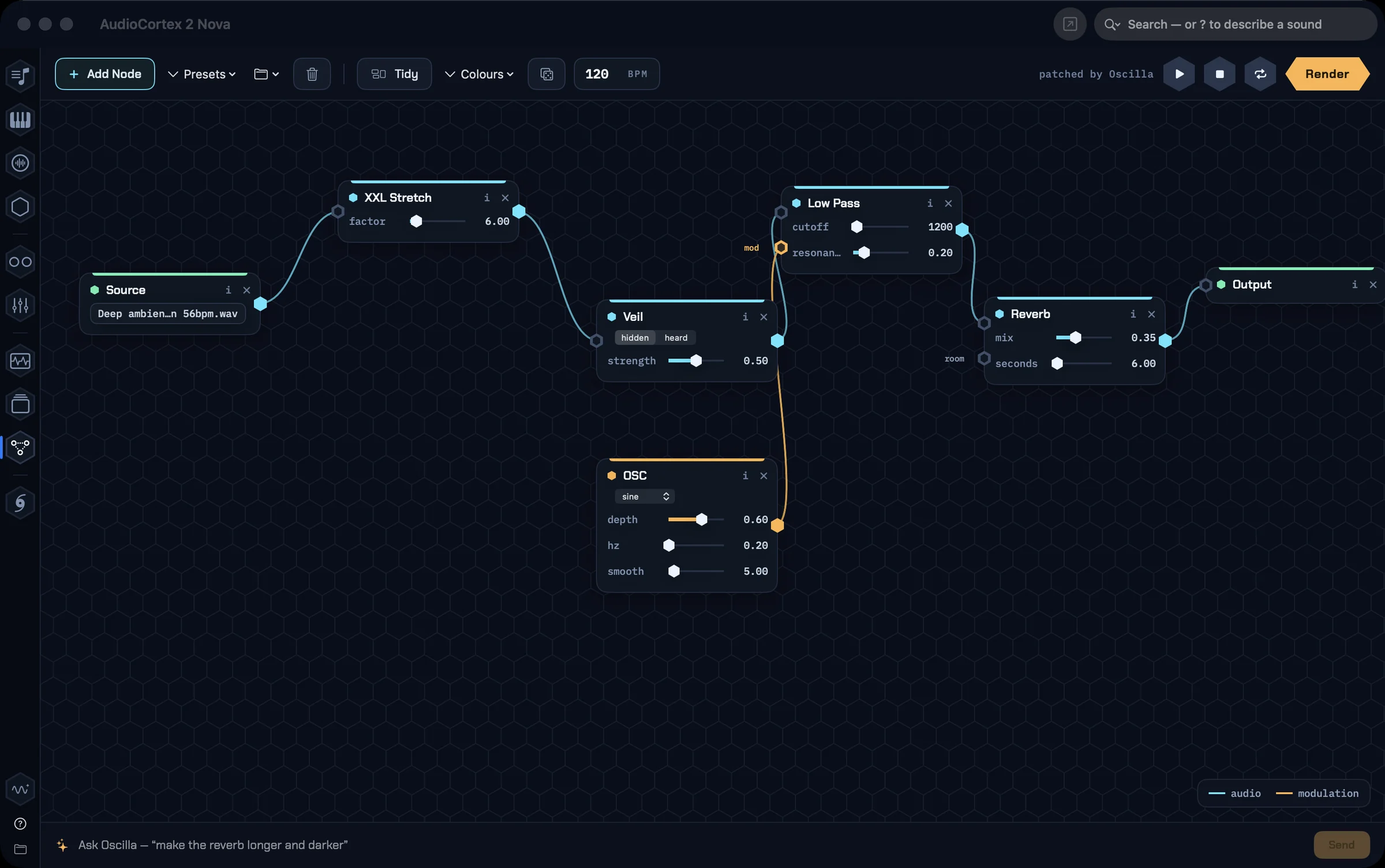
Nodes is a patchable canvas, like a modular rig: a source file through Veil, into a reverb, out to a file. Every texture engine and effect in AudioCortex is a card you can patch, including XXL Stretch, Lush Stretch, Mosaic, convolution and the spectral suite.
Since Beta 6 the rack has the modules a modular system has: a multimode filter, a resonator bank, a wavefolder, ring mod, a frequency shifter, a vocoder, spectral freeze, Euclidean and Turing sequencing, a four-input mixer and more. You set every value. Save patches and load them again, or ask Oscilla to wire one for you.
Spiral

The Spiral is harmony you can watch. It listens to everything the app plays and winds it around the twelve notes. Chords bloom as constellations, a drone burns as a single spoke, and detuning smears off-axis. Leave it open while you work and you can see the harmony of whatever is playing.
Phylo

The Phylogenetic Explorer classifies your sounds and lays your whole library out as a hex map by likeness: kicks beside kicks, pads beside pads, with words on the hexes saying what lives there. Click to dive in, play what you find, and record what you play. It’s the room for when you don’t know what you’re looking for yet.
MIDI

The MIDI library reads every MIDI file the way the Library reads audio: tempo, meter, key, feel and parts, and it spells out the first chords. Search for “bass lines in F# around 160 BPM”, open any file as a piano roll, play it on a sound of your choice, or hand it to a song.
Sounds
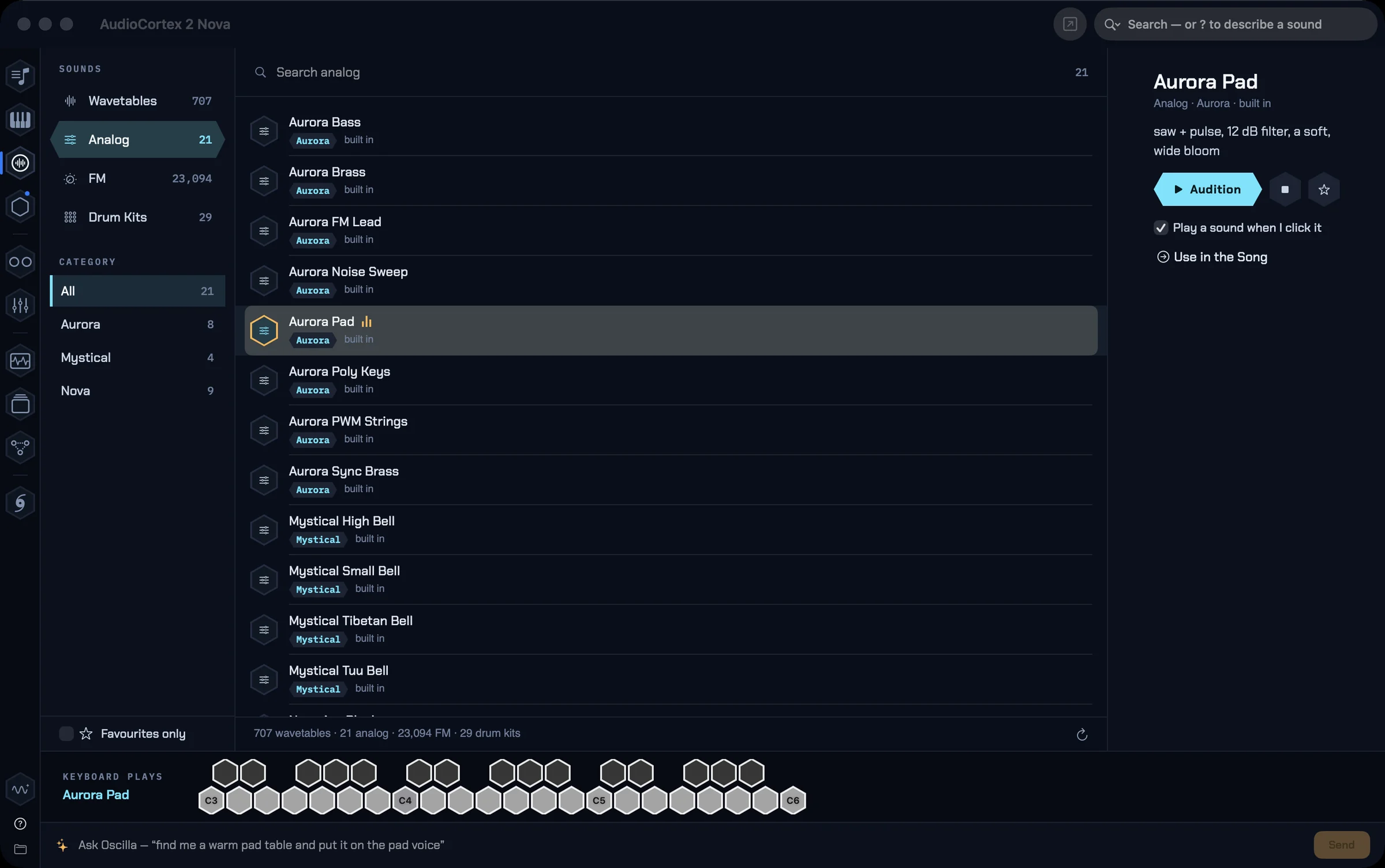
Sounds is the browser for everything built in: wavetables, analog and FM presets, and drum kits. Play them from the keyboard, favourite them, and send one to the song with a click.
Where to go next
- The help, as a book. Help ▸ Save as PDF in the app writes the complete help for the build you’re running. Each release’s book is also on the site.
- Try it. The beta is free for 14 days, with every room, every engine and Oscilla included.
- New in each beta. The home page always shows what the latest beta added, and updates arrive in the app through AudioCortex ▸ Check for Updates….
Questions, or found something here that no longer matches the app? Write to support@icedaudio.com.